Version: 0.8.0
Difficulty: Easy
Adding Options
Before starting
It's best to first read First Interaction before starting this tutorial.
In this tutorial, you will learn how to create and use options in your interactions.
Creating an Option
To create an option, follow these steps:
- Right-click on your entry and select
+ Link with .... - Search for
Add Optionand click on the + icon to add it to your sequence.
Add Option
Display a list of options to the player
Configuring a Option
Let's configure the option by doing the following steps:
- Enter the field
Textyour question that you want to ask the player, likeAm I a beautiful flower?. - Select the correct speaker for the option.
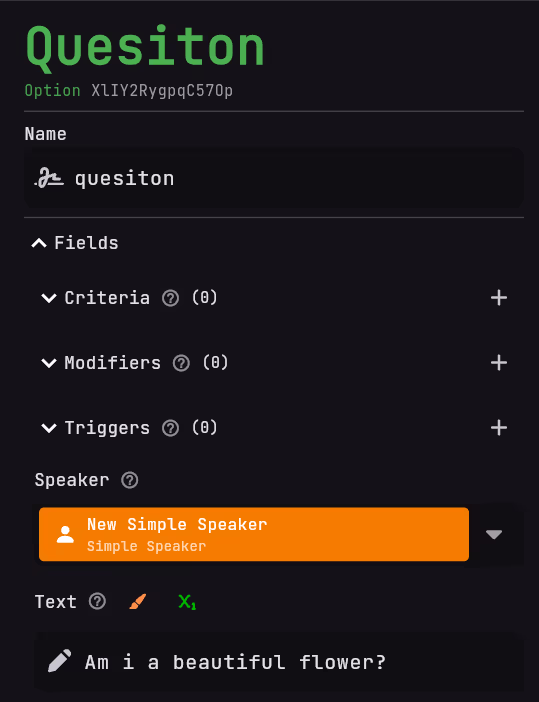
Adding options
- Click on the + icon by the field
Optionsand expandOptions #1. - Enter the question answer of option 1 in the Field
TextlikeYes you are!. - Press the + icon in the field triggers inside
Options #1and expandTriggers #1. - Click on
Select a triggerableand in the search menu, create the entry that you want to trigger after the player selected that Option. Like a spoken withYay thank you! - Repeat these steps to create more options like
No you are not..
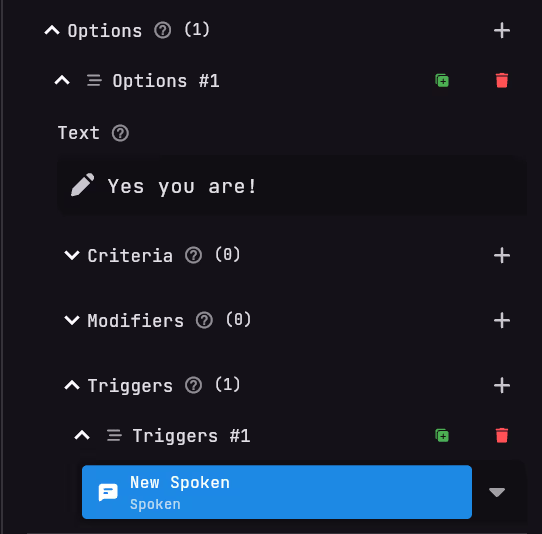
Result
After you have created the options, you can test your interaction by clicking the publish button and it should look like this: