Custom Commands
This guide assumes that you have already installed the Basic Extension.
This guide shows you how to create a custom command with arguments. If you don't need arguments, you can use the RunCommandEvent to create a command without arguments.
In this tutorial, you will learn about custom commands and how to create one. We will create a command where you can define a pseudo and an age to display a message to the player.
Creating a Custom Command
In this tutorial, we will create a command where you can define a pseudo and an age to display a message to the player. We will use a Custom Command Entry to start defining our command.
To add a custom command entry, go to the top right corner of the panel and click on the + icon. Search for Add Custom Command, add it to your manifest and name it.
Creating the arguments
Now, we will need two types of arguments; a Word Argument to get a word, in this case, the pseudo, and a Number Argument to get a number, in this case, the age.
To add an argument, click on the Custom Command entry, then on Arguments, and select Add Word Argument. Next, click on the last argument and add a child: Add Number Argument.
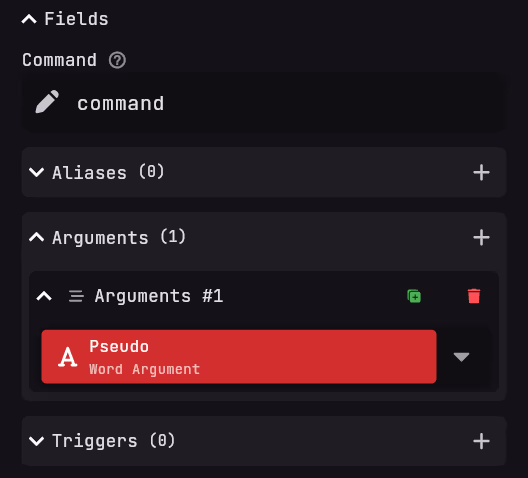
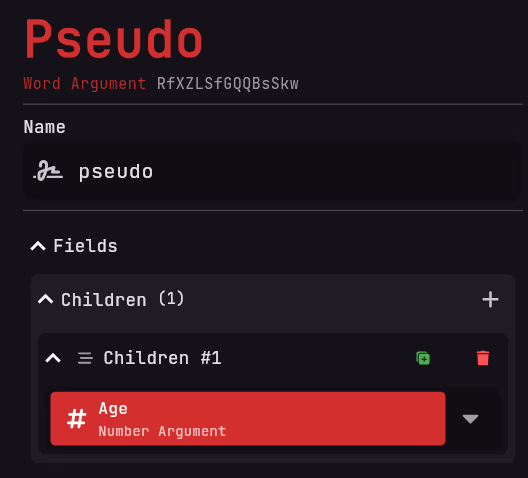
Rename your arguments to make it easier for players to understand it when they will execute the command.
Do something with your command
If you want your command to actually do something when you run it you can do the following steps:
- In the
Number Argument, add a trigger. For this guide we will use aSend Messageentry. - Inside the
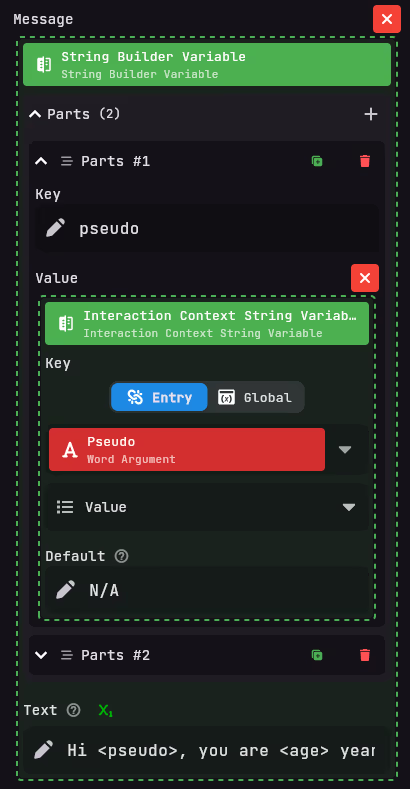
Send Messageentry click on the icon above themessagefield and search forString Builder Variable. - Now create a part in the string builder and call it
pseudo. - For the value of this part use a
Interaction Context String Variableand set the entry to the earlier createdPseudo Word Argumententry. - Do the same for the number argument
- Lastly construct a message. For this guide we used
Hi <pseudo>, you are <age> years old.
Result
Sequence result
Now your pages should look something like this:
- Sequence
- Manifest
This is an interactive graph of all the entries in the selected pages.
You can view different pages by clicking on the tabs. Each page contains a view of the entries in that page.
Click on an entry to view its details.
Our documentation renderer doesn't currently support displaying dynamic variables, so you'll only see a simplified static message instead of the actual variable.
In Game result
In game, the command should look like this: